Difference between revisions of "Template:Alarm Disarm Arm SystemUI NewGUI"
| Line 12: | Line 12: | ||
==Step by Step Instructions== | ==Step by Step Instructions== | ||
| + | 1. From Live View | ||
| + | |||
| + | Right click, select Main Menu | ||
| + | |||
[[File:Arm_and_Disarm_Global_Alarm_-_SystemUI_New_-_1.jpg|600px]] | [[File:Arm_and_Disarm_Global_Alarm_-_SystemUI_New_-_1.jpg|600px]] | ||
| + | |||
| + | 2. Click Alarm | ||
[[File:Arm_and_Disarm_Global_Alarm_-_SystemUI_New_-_2.jpg|600px]] | [[File:Arm_and_Disarm_Global_Alarm_-_SystemUI_New_-_2.jpg|600px]] | ||
| + | |||
| + | 3. Click Disarming | ||
[[File:Arm_and_Disarm_Global_Alarm_-_SystemUI_New_-_3.jpg|600px]] | [[File:Arm_and_Disarm_Global_Alarm_-_SystemUI_New_-_3.jpg|600px]] | ||
| + | |||
| + | 4. Click to enable the Disarming feature | ||
[[File:Arm_and_Disarm_Global_Alarm_-_SystemUI_New_-_4.jpg|600px]] | [[File:Arm_and_Disarm_Global_Alarm_-_SystemUI_New_-_4.jpg|600px]] | ||
| + | |||
| + | 5. Under Disarm Alarm Linkage Action select which alarm types to disarm | ||
[[File:Arm_and_Disarm_Global_Alarm_-_SystemUI_New_-_5.jpg|600px]] | [[File:Arm_and_Disarm_Global_Alarm_-_SystemUI_New_-_5.jpg|600px]] | ||
| + | |||
| + | 6. Click Apply to save settings | ||
[[File:Arm_and_Disarm_Global_Alarm_-_SystemUI_New_-_6.jpg|600px]] | [[File:Arm_and_Disarm_Global_Alarm_-_SystemUI_New_-_6.jpg|600px]] | ||
| + | |||
| + | 7. Return to Live View | ||
| + | |||
| + | The system will display an icon of a bell with a line through it, designating the Alarm has been disarmed | ||
[[File:Arm_and_Disarm_Global_Alarm_-_SystemUI_New_-_7.jpg|600px]] | [[File:Arm_and_Disarm_Global_Alarm_-_SystemUI_New_-_7.jpg|600px]] | ||
| + | |||
| + | 8. Live View with Alarm enabled | ||
[[File:Arm_and_Disarm_Global_Alarm_-_SystemUI_New_-_8.jpg|600px]] | [[File:Arm_and_Disarm_Global_Alarm_-_SystemUI_New_-_8.jpg|600px]] | ||
Revision as of 21:49, 4 February 2020
Reference
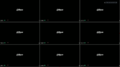
Disarmed LiveView
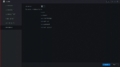
Disarming Page-Disarmed
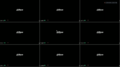
Armed LiveView
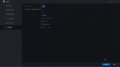
Disarming Page-Armed


Prerequisites
Video Instructions
Step by Step Instructions
1. From Live View
Right click, select Main Menu

2. Click Alarm

3. Click Disarming

4. Click to enable the Disarming feature

5. Under Disarm Alarm Linkage Action select which alarm types to disarm

6. Click Apply to save settings

7. Return to Live View
The system will display an icon of a bell with a line through it, designating the Alarm has been disarmed

8. Live View with Alarm enabled


